Data Operations
Open Settings → Data Operations. Sources & Status shows read-only roles, availability and the latest successful download. Downloads & Refresh runs approved tasks and provides progress/cancellation. Carry-over Imports previews and applies saved mappings. Run History shows the latest 100 runs. File Uploads is clearly marked as a future integration. Organisation users cannot edit credentials, source definitions or mappings.
Configuration has moved to SuperAdmin → Data & Services → Data Sources & Media. Organisation administrators can run approved downloads and import previews, but credentials, endpoint definitions and mappings are vendor managed.
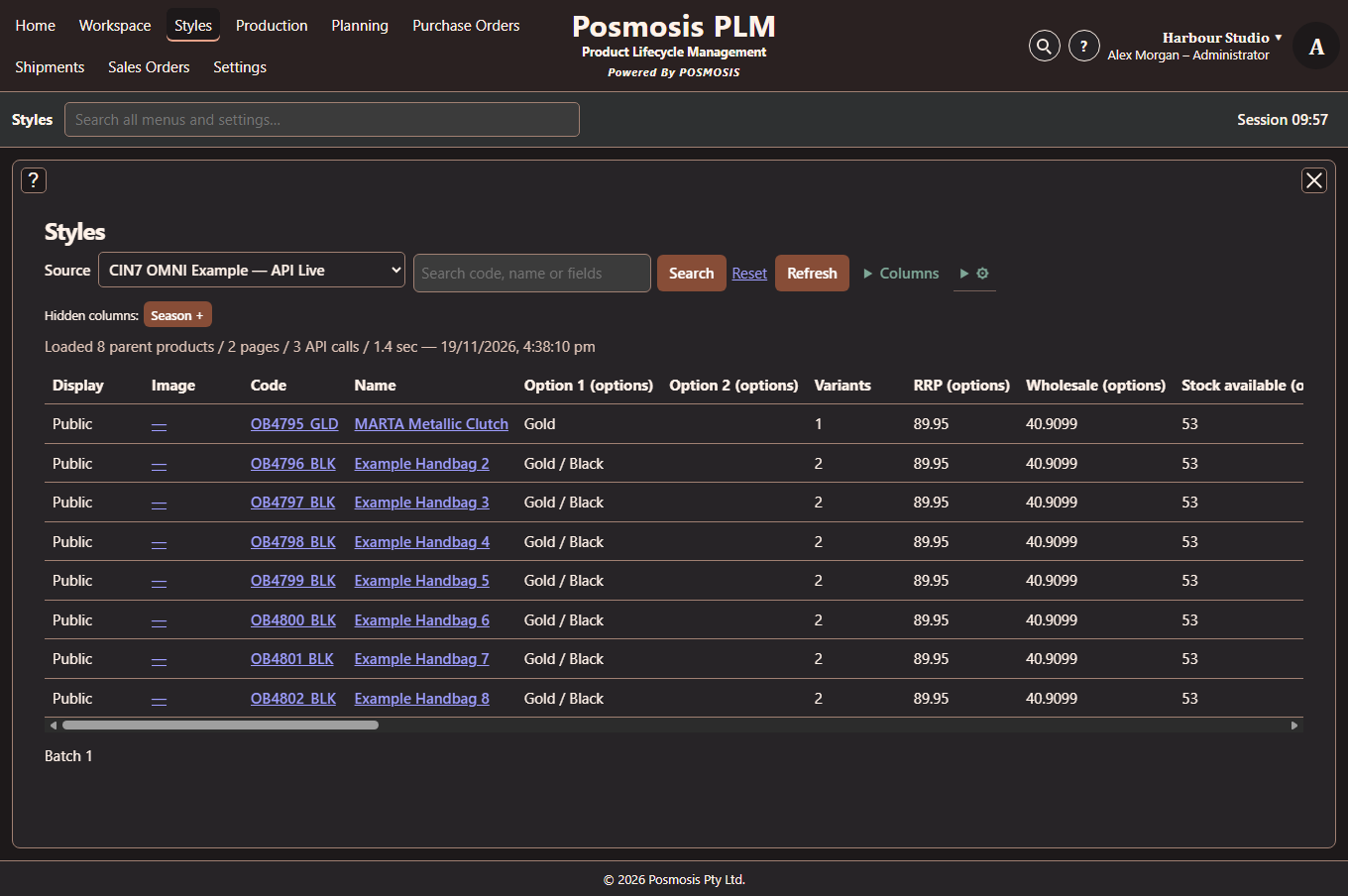
On the Styles / Products list, Source offers Draft Styles and separate [connection] — API / SQL Live and [connection] — Local choices. ERP browsing requires organisation administrator permissions. Setup-required entries open the endpoint / SQL source configuration. Local shows the latest completed download, even offline; if none exists, use Download now. A draft mapping is needed for draft imports, not for browsing Local data.
Live automatically checks the connection, then loads a batch with progress, calls and elapsed time. In Connection settings, set Live products per page (1–250) and Default live pages (1–10). Defaults are five pages of 50, up to 250 parent products, plus a separate connectivity check. An early end of data stops loading. Next batch reads the following pages. Field searches filter at the ERP before paging; Search loaded results filters only the live batch. Local searches cover the complete snapshot. Saved source filters apply. Each live page is capped at 8 MB / 30 seconds; the display batch is capped at 16 MB. Live reads never refresh Local or create drafts.
Styles is a product-specific maintenance list. Cin7 Omni uses Products automatically; Swagger and endpoint selection are not required there. Generic endpoint extracts remain under Connections. Use the compact source/search/refresh controls; the cog opens connection settings, source labels, Endpoint Search Fields and Local downloads. One parent row represents each product. Option summary values separated by / are distinct variant values, not aggregated stock totals.
Use Discover endpoint fields to read one sample page with the saved connection. Custom-field objects and key/value collections expand into separate choices such as customFields.custom_006. Only field names are retained per organisation and endpoint. Fields absent from the sample may require a Local download. Discovery does not establish whether a custom field supports live API filtering.
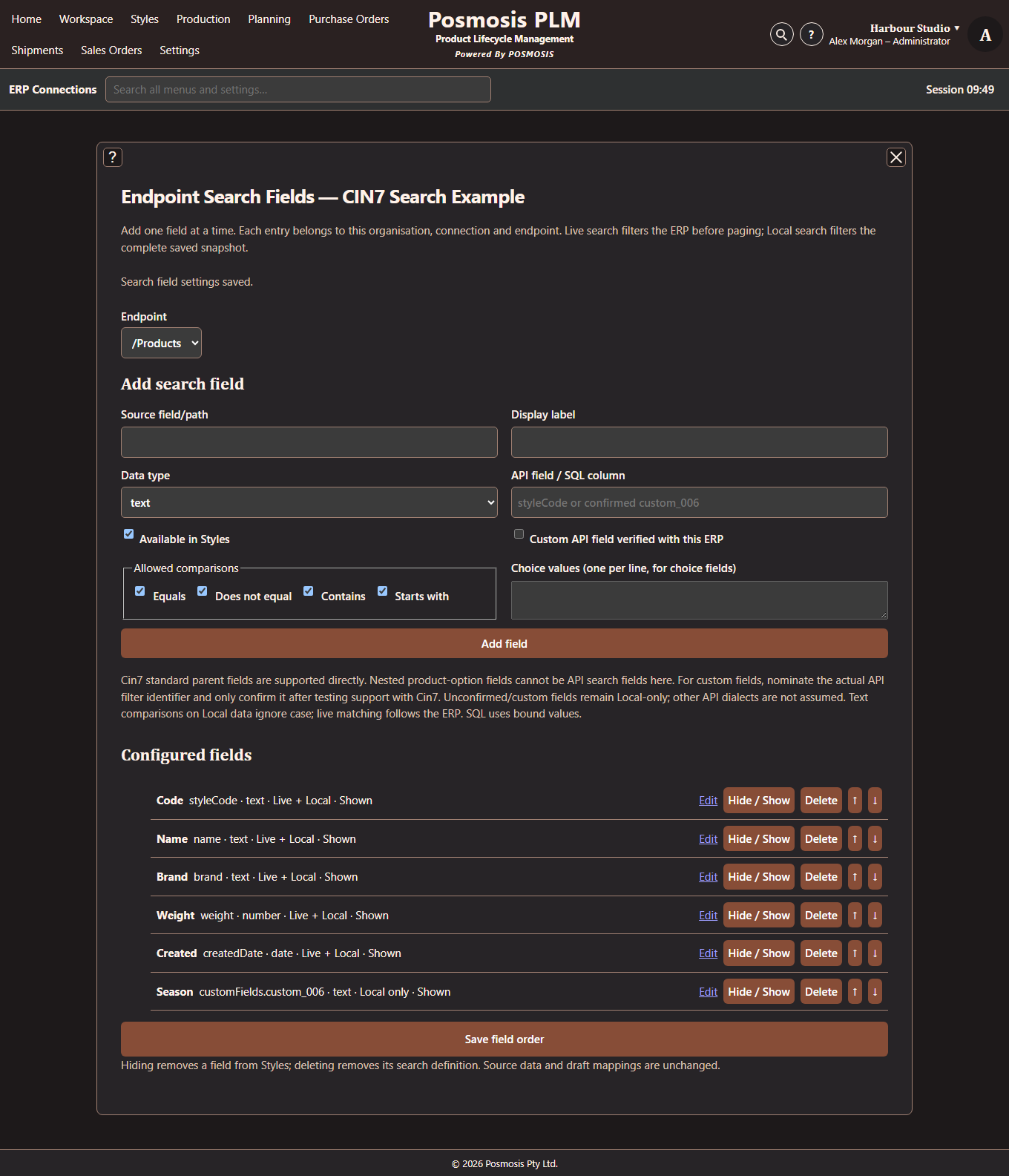
Endpoint Search Fields: open a saved connection, choose this link and select Products. Add one field at a time: source path, display label, text/number/date/choice type, allowed comparisons, and Available in Styles. Choice fields take one allowed value per line. Edit, Hide/Show, Delete and dragging/arrow buttons maintain the list. Configuration belongs to this organisation, connection and endpoint. Every Cin7 Products setup starts with Code and Name; deleted defaults remain deleted.
The Styles Field → Comparison → Value search sends a filter to the live ERP before each page, combined with any saved source filter. Local mode searches the entire snapshot before paging. Search loaded results remains a separate quick text filter. Unknown/custom API identifiers need explicit confirmation that the ERP supports filtering them; a readable label does not establish API support. Nested custom paths can be Local-only. A rejected API filter is shown as an error, never silently replaced by an unfiltered download. Use Equals for literal values containing underscores, percent signs, brackets or backslashes in Cin7 live searches. Dates mean UTC calendar days. Filter state is retained when paging and returning from details.
Click a code or name to open its read-only product page: General information, Classifications, Dimensions, Accounting, Website options, Custom fields, Images, Product options / variants and Pricing. Live detail uses Products/{id}, which includes productOptions and their price columns; Local detail uses the downloaded snapshot and never calls the ERP. Back or the close button returns to the same source/search/page. Only information returned by the ERP is shown; missing lookup names and client-specific custom-field meanings are not invented.
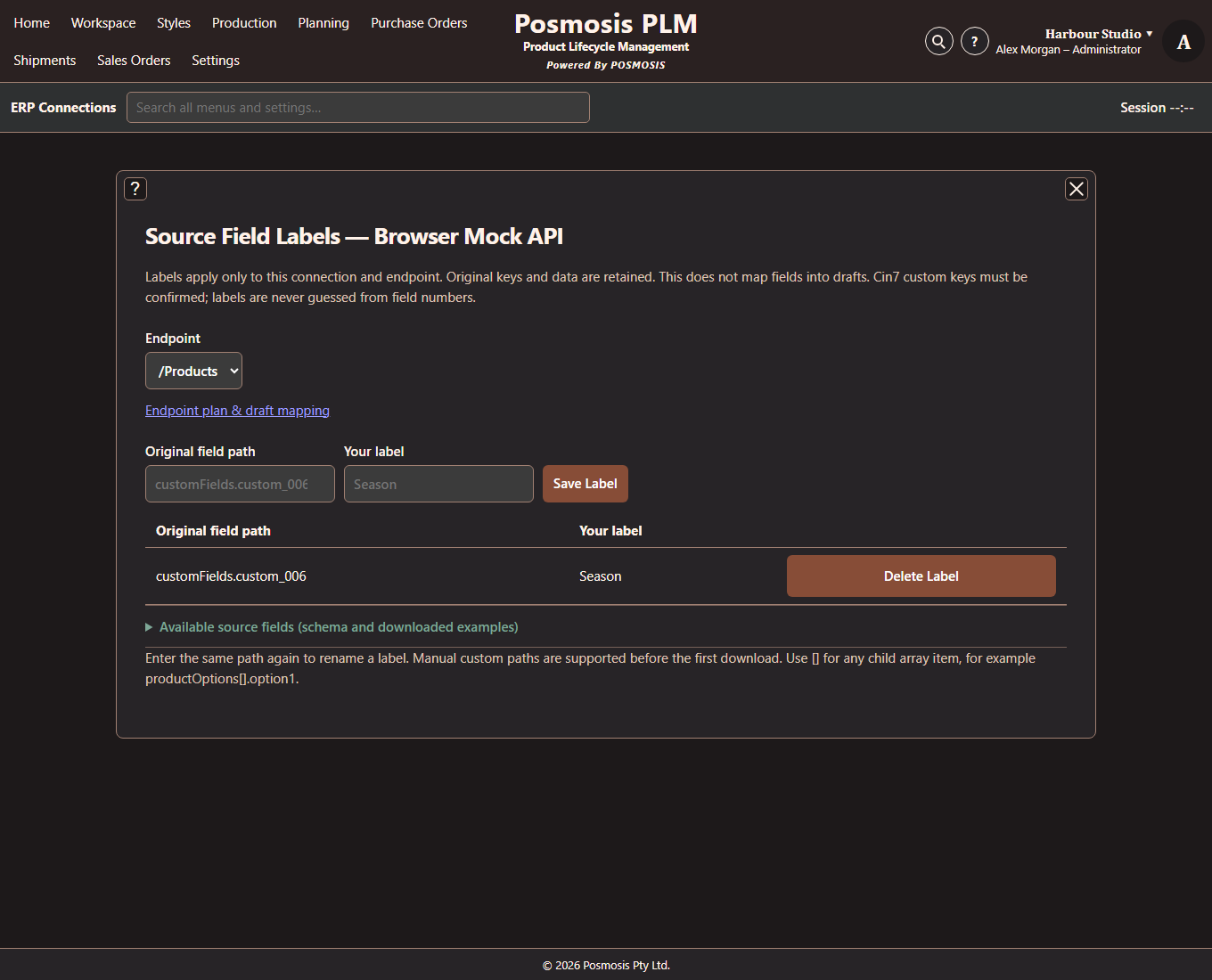
Open Source Field Labels on a saved connection, choose the endpoint and give an original path a readable label, for example customFields.custom_006 → Season. The product list shows Season with the source key available on hover; mapping/filter suggestions retain the original path and show its label. Labels are specific to the organisation, connection and endpoint. Enter a path again to rename its label, or delete the label. Schema/downloaded field suggestions and manual paths are supported. Cin7 custom-field meanings are never guessed from their numbers. Labels do not change ERP data or assign draft destinations. SQL live reads still need a reachable server, a trusted certificate, SELECT-only permissions and a unique identity column.
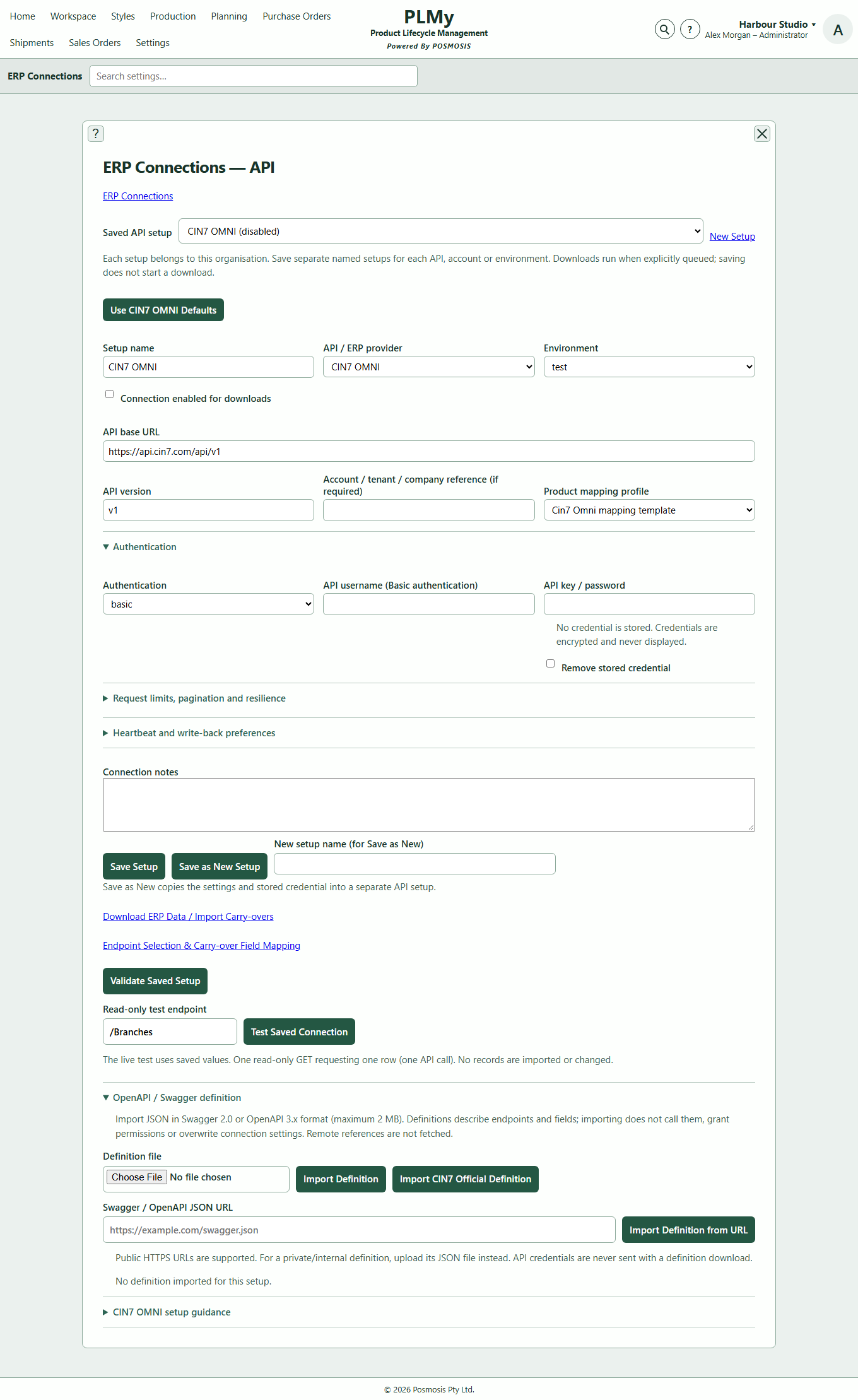
Open SuperAdmin → Data & Services → Data Sources & Media.
Choose API Connections or SQL Connections to open a separate editor with the relevant fields. Transport is fixed for each setup; create a new setup to use another transport. Downloads & Carry-over Imports still lists both types, with separate mappings and staged data.
A stored password/key shows ******** as a placeholder. This is an indicator, not the secret. Leave the field empty to retain the stored credential, type a replacement to change it, or tick Remove stored credentials to clear both the username and key/password.
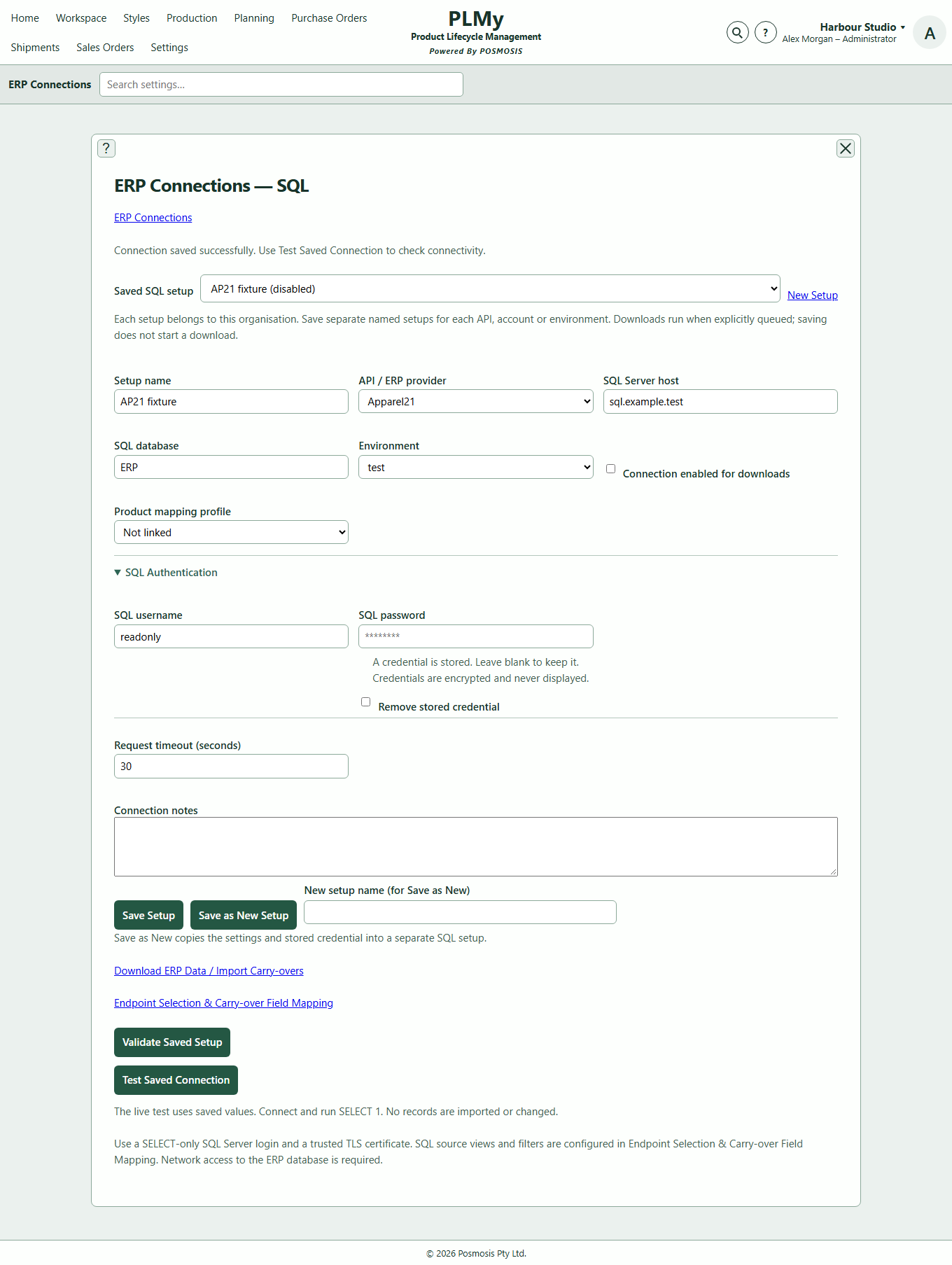
Organisation administrators can maintain multiple named API setups, with or without a workspace. Select a Saved API setup to load it. The first setup is CIN7 OMNI. Change Setup name and Save Setup to rename it; New Setup creates another connection. Save as New Setup copies settings and the stored credential, using the supplied new name. Imported definitions are not copied.
Enter the HTTPS base URL, authentication details, account reference if required, paging, rate limits, timeouts/retries and heartbeat preferences. Cin7 Omni uses Basic authentication with its API username and connection key. Enter the key in the credential field. Leave it blank to preserve an existing credential; use Remove stored credentials to clear both the username and key/password. Credentials are encrypted and never displayed.
Save before using Validate Saved Setup. Validation checks local configuration and decryptability; it does not test network connectivity or ERP permissions. Sync, heartbeat jobs, OAuth token retrieval and write-back execution are not activated by saving settings.
Saving displays a confirmation popup. To check the actual connection, select Test Saved Connection. API transport sends one read-only GET using the saved authentication, requesting one row; the default test path is /Branches. Change the test path to a read-enabled endpoint if necessary. SQL transport connects to the saved database and runs SELECT 1. The result popup distinguishes authentication failures, endpoint permissions, missing endpoints, rate limits and network/TLS problems. Tests have a 30-second overall limit and do not import records or write ERP data. Success verifies only that request/query, not all endpoint or table permissions. Save any edited credentials before testing; OAuth token retrieval is not supported yet.
Under OpenAPI / Swagger definition, import Swagger 2.0 or OpenAPI 3.x JSON up to 2 MB, or select Import CIN7 Official Definition. Browse/search methods, endpoint paths, parameters, request schemas, response codes and data fields. Files are attached to the selected setup and retained as import history. External references are not fetched; imports never execute endpoint instructions or overwrite connection settings. For YAML, obtain the provider's JSON export.
You can also import a definition from a public HTTPS JSON URL. Private/internal URLs are rejected; upload those files instead. URL imports do not send your ERP credentials. The same 2 MB limit applies.
Open Endpoint Selection & Carry-over Field Mapping on a saved setup. Tick collection GET endpoints and save full or filtered plans. SQL transport accepts SELECT columns FROM schema.view; implement joins in a read-only ERP view. SQL filters use equality on a nominated column with a bound value. SQL Server credentials require SELECT-only permissions, trusted TLS and network reachability. Internal customer databases need a VPN or bridge; no bridge is installed automatically.
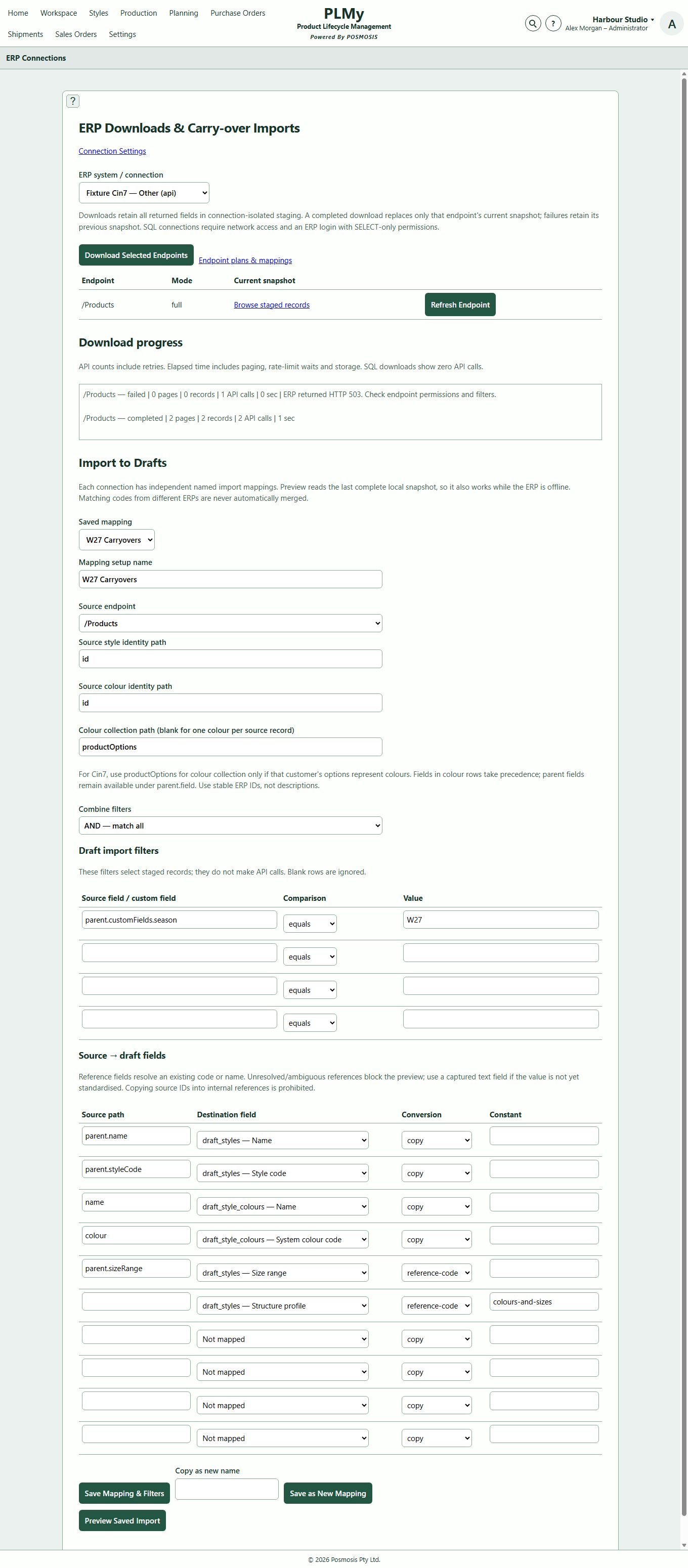
Open Download ERP Data / Import Carry-overs, choose the connection, then download selected endpoints or refresh one endpoint. Progress shows calls (including retries), pages, records and elapsed time, with final totals. A complete run becomes that endpoint's current snapshot atomically; failures retain the previous snapshot. Returned columns and raw JSON are retained, including nested values and repeating-array child rows. Download limits are 250,000 records, 10,000 pages and 32 MB per page; refine source filters for larger sets. Basic, bearer and API-key downloads are supported; OAuth token retrieval, heartbeat jobs and ERP write-back remain separate.
Under Import to Drafts, choose or save a named mapping belonging to that connection. Set stable style/colour identity paths, optional colour collection path, source-to-draft fields and AND/OR filters. For nested colour rows, parent.field accesses product-level values. A provider-supported download filter reduces API calls; local carry-over filters do not. Reference-code/reference-name resolve existing references; constant reference values can be entered in Constant with Source blank. Missing or ambiguous references block the preview. Preview validates the proposed draft changes without saving them. Review, then import within 30 minutes. Source links prevent repeat imports from creating duplicates; another ERP's matching code is never automatically merged. Preview supports up to 10,000 source records / 50 MB and 2,000 matching colours. Draft imports create no SKU records.
Product mapping definitions remain under Products → Field Rules & ERP Mappings. The API setup can link to one of those profiles. Keep backups of the Docker protection-key volume alongside database backups to retain access to encrypted credentials and definitions.
For colours, sizes, widths and seasons, ERP Reference Aliases in the connection's linked Product mapping profile take precedence over direct local code/name matching. This allows BLACK, BLK and BK to retain their source values while resolving to one standard reference. Ambiguous aliases block import.