Reference Options: Add, Hide, Delete and Order
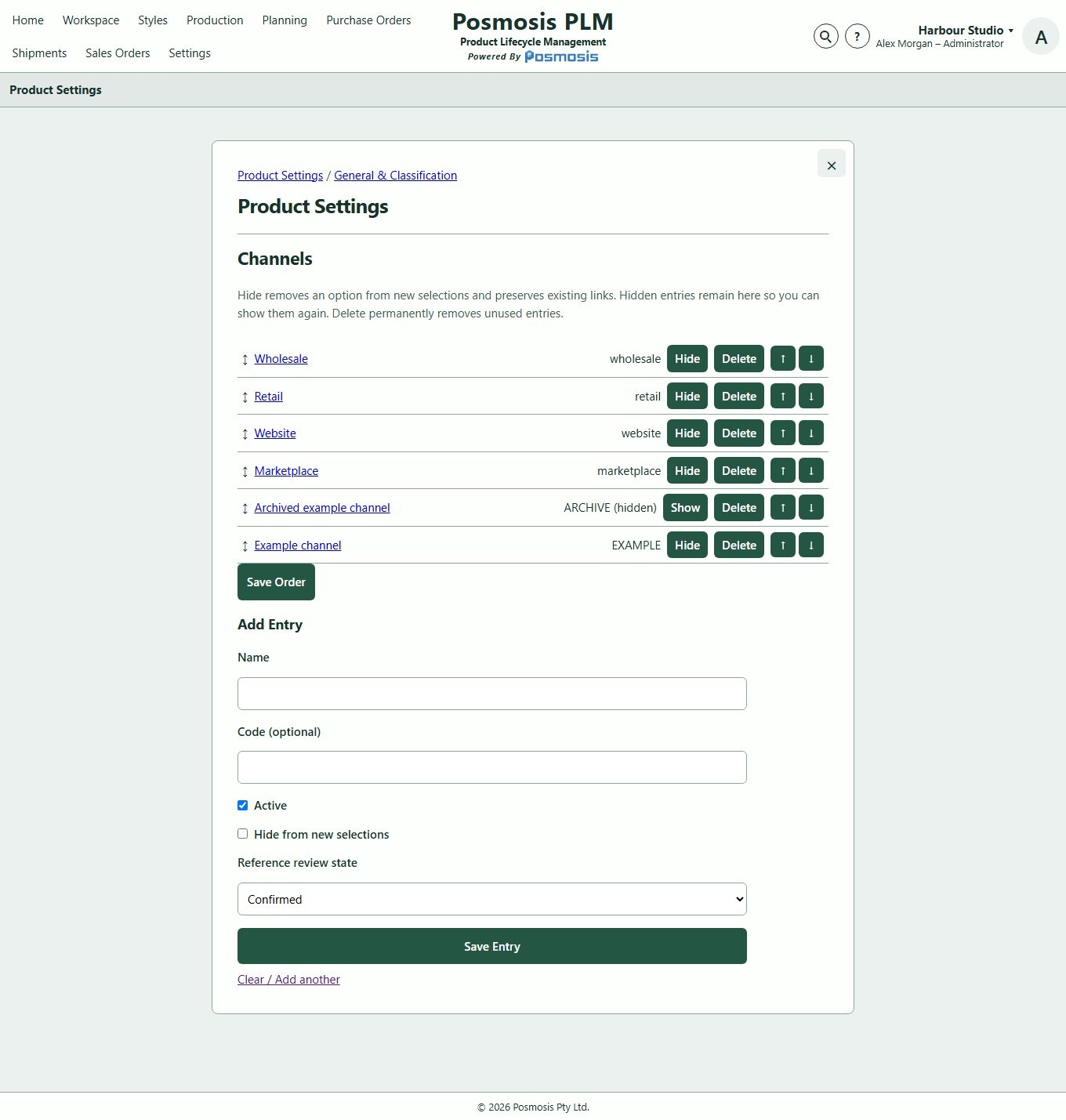
- Choose a section and reference list, such as General & Classification → Channels.
- Under Add Entry, enter its name, optional code and relevant details. Choose Confirmed or Provisional, then select Save Entry.
- Select an existing entry's name to edit it. A code or name is not its internal database ID.
- Drag an entry or use ↑ and ↓, then select Save Order. Saving an individual entry does not save an unsaved reorder.
| Control | Effect |
|---|---|
| Hide / Show | Excludes/restores a choice in new dropdown selections. Hidden entries remain in maintenance lists and remain available where already selected. |
| Active | Separate operational status. Hiding does not disable an existing counter, policy or configured code component. |
| Provisional | Marks a reference needing review. It does not change its internal ID or merge similarly named options. |
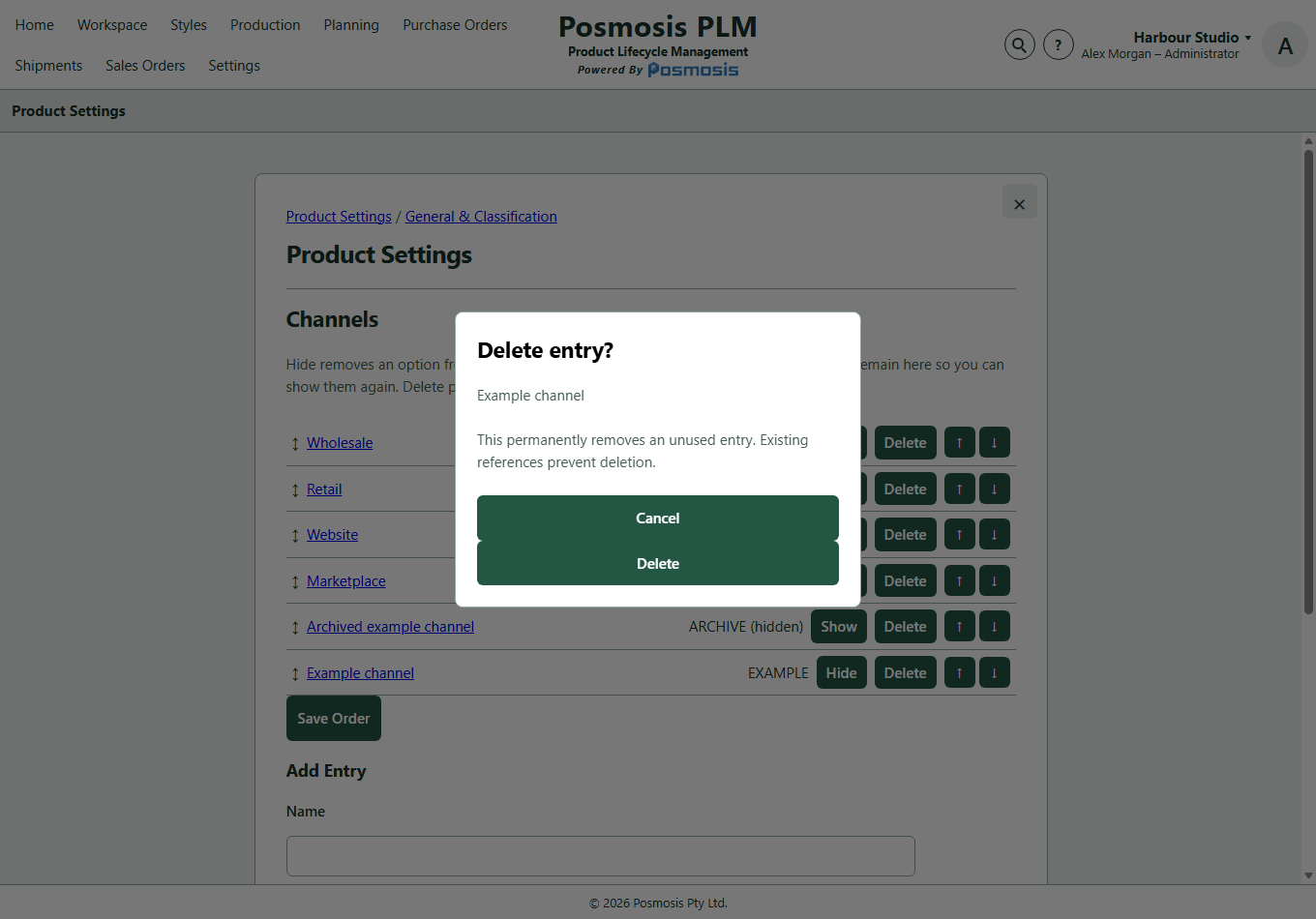
| Delete | Opens an in-app confirmation. Cancel keeps the entry. Confirmed deletion permanently removes an unused entry. |
If an entry is referenced by another record, selected as a default, used by an allocation, or is a code component needed by a configured counter, deletion is blocked. Use Hide or reassign references first. Allocations and audit history are protected system records, not removable reference options.
If another user changes an entry or its order, reload before saving your changes. All operations apply only to the currently selected organisation. Existing workspace/imagery editors retain their own Edit, Remove and Save Settings controls.