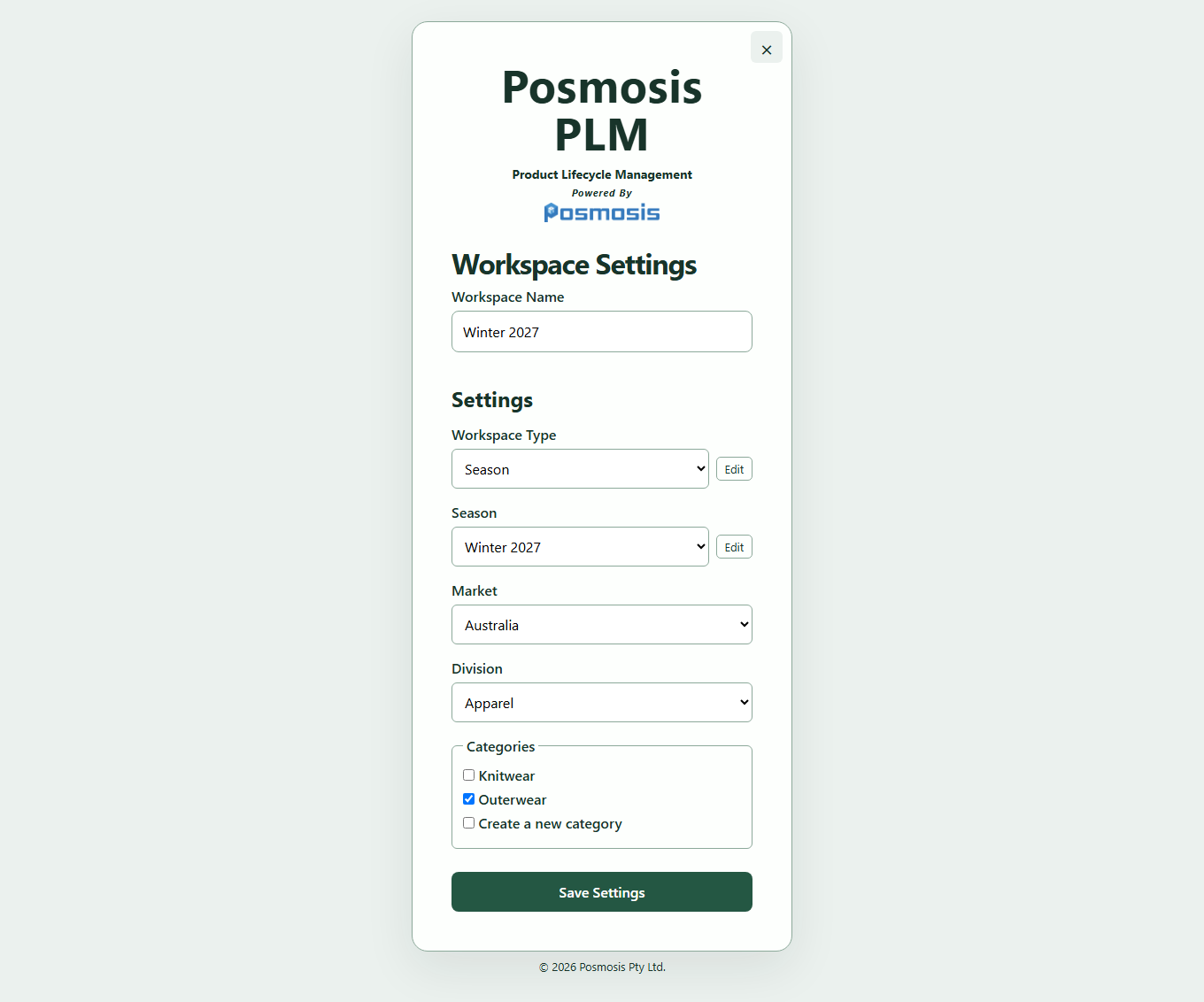
Workspace Settings and Defaults
Open Settings → Workspace.
When creating a workspace, choose a Workspace Setup and select Use Setup before entering its details. The selected setup determines the fields and their order for that workspace.
Creating or updating users and workspaces requires Super User or higher access in the selected scope. Ordinary Users cannot open or submit maintenance screens. You cannot grant a security level above your own, promote yourself, or edit a higher-level account. Creating a workspace does not increase your security level.
- New Workspace creates a workspace. Enter a name and fill in the fields configured for your organisation. Use the create option in a list to add a value while setting up the workspace.
- Workspace Admin lists workspaces. Use Workspace Settings to edit the selected workspace. If your organisation uses divisions for categories, choose a division before selecting categories. Standalone categories can be selected directly.
- Default Workspace controls which workspace opens when you enter this organisation. Choose a workspace and save, or select Ask at Sign-in. You can also set the default while choosing a workspace.
- Workspace Access manages the team and is covered in Workspace Access.