Product Maintenance
Field history
On a saved draft style, Alt-click a field or select its small clock History control to see previous and new values, who saved them, when, and their source. Select History on the style for the combined change history. Times use your browser's local timezone. History is organisation and workspace scoped and records saved changes only; unchanged saves do not add entries. Select the recycle icon beside a previous or recorded value, then confirm Yes, restore to save that field immediately. The original history remains unchanged; a new entry marked ★ Restored records who restored it, when, and the source history entry. Values already current, deleted records, parent links and non-editable fields cannot be restored here. Save or discard unsaved edits first. Restoration revalidates the current product rules and refuses stale records or unavailable references. After restoring, the editor refreshes and reopens history. Existing records have a labelled starting value from when history was enabled. Earlier field values cannot be recovered. Reference names are retained as they were at the time. Load older retrieves earlier entries. New records must be saved before history is available.
User fields and related records
Show all means user-facing business fields, not every database column. Internal IDs, code-policy/allocation links, audit details, storage paths, processing information and integration registers stay internal. Business references such as Supplier, Currency, Colour and Size range display readable names or codes. Code generation rules belong in organisation product settings.
The style maintenance screen includes the business record areas: prices, descriptions, barcodes, sourcing, seasons, media, classifications, buying and samples. Open All user fields & sections — show / hide, then Show all user fields and sections to reveal the full catalogue. Save screen visibility shares that layout within the organisation. Each repeatable area displays its own records; use Add or Edit to work on them without leaving the style. Save record saves that record independently and refreshes only its section. Save or discard edited related records before saving the main style; unsaved entries are retained on screen. Discard record changes resets only that related record after confirmation. Save the new style and its colour first before adding related records. Operational history and legacy SKU/width tables are not offered as ordinary user areas.
The styles list has a separate Columns control covering all those fields. Repeated values are combined into one cell, keeping one row per style. The horizontal scrollbar moves through the complete result. Screen visibility never changes list visibility, and list preferences never change the maintenance screen.
Compact entry layout
Fields are arranged in bordered groups for identity, codes, classifications, availability, construction, notes and business details. Short controls keep related values together. Hover over a clipped value to read it; focus a clipped read-only value to expand it. All fields remain available through Show / hide fields, and the groups adapt to narrow screens.
Structure-aware entry
Choose a Structure profile. Standalone style–colour combines style and colour fields on one screen. Multiple-colour structures provide separate colour cards; Add another colour creates another entry, and Remove unsaved colour removes only an unsaved card. Saved colours are edited in their cards. Sized structures show the style size range and its sizes; each colour holds first/last available sizes and, where enabled, a width range and first/last width. No SKU explosion happens during entry. Style and colour changes save together. Changing to a single-colour structure is blocked while multiple colours remain.
Entry field visibility
Every user-facing field is available in the entry field chooser. New organisations start with user fields visible; system-managed fields are not offered. In Add or Edit, open Show / hide fields, untick optional fields, then choose Save field visibility. The layout is shared by the organisation for that entry screen. Show all restores every field; save to retain it. Required fields stay visible. Hiding fields does not erase values or save the product. Organisation editability policies still apply. The styles result list has its own independent column layout, including user-facing style fields and related business summaries. Use Columns to hide or reorder them, or Show all columns to restore them. Scroll horizontally using the bar above the lower workbar. List layout does not change the entry form.
Voice switches and highlighting
In the Draft list, expand Columns — show, hide and order. Tick or untick Voice beside a supported column; it saves immediately for the organisation. This controls extraction, independently of Show/hide visibility. Voice-enabled columns and field controls share a tinted background in the chooser, results and style editor. A legend identifies the tint. Change its colour in Themes → Voice-enabled fields. System columns and currently unconnected record areas show Voice unavailable. Required companion values can still be selected manually during capture review.
Voice vocabulary
Open Settings → General → Voice Vocabulary, or My / Organisation voice vocabulary within Voice/Text Capture. Add a spoken term, its meaning and the field it applies to. Currency rules apply to both cost and sell currency; EU → EUR will not change EU sizing. Personal rules apply only to you in the selected organisation and override shared rules. Organisation rules require administrator access to add, edit or delete. Rules can be edited, disabled or deleted with confirmation. Up to 100 rules per scope are supported. Existing currencies and other references are still validated.
During capture review, correct a suggested value and check the spoken term beside it, then choose Remember for me or, if authorised, Remember for organisation. Saving a correction alone does not create a rule. Vocabulary guides AI interpretation and exact matching; it does not retrain the model. Ambiguous values remain for review.
Workspace drafts
The Draft list shows colours linked to the selected workspace. Shared style/colour master details are common wherever used. New drafts automatically join the selected workspace. Super Users and above can open Unassigned styles, select existing drafts and choose Assign selected to this workspace; no records are copied. Old unassigned drafts are retained until explicitly assigned. Carry-over previews name their target workspace and must be regenerated if that workspace changes. ERP Live/Local browsing remains an organisation reference source; importing assigns reviewed drafts to the selected workspace.
Quick product entry
New and existing drafts open a compact essentials form: code, name, colour code/name, material, hardware, description, cost and predicted sell price. Cost and sell price each have a currency. One Save stores these values together; the relational tables are managed behind the scenes. Multiple existing colours have their own compact fields. Structure & sizing is the first section. Confirm the structure and, for sized products, the size range with Continue to details before entering a new product. Existing styles use their saved structure; changing it requires confirmation again. More details opens the full supporting editor for additional colours, descriptions, classifications and other information. Additional existing records are retained.
Add a product by voice or text
Open Available voice fields in the capture dialog to see every connected user-field label, covering the essentials shown on the quick-entry form. Search this list before recording. It is generated from the same allowed-field rules as capture; screen/list visibility does not change voice connectivity. Fields outside that list are not connected.
Choose the Draft source and select Add Product by Voice / Text (the name follows organisation terminology). Record up to 60 seconds, upload audio under 10 MB, or type a description. Stopping a recording starts transcription and field matching automatically. For typed text or uploaded audio, click Suggest fields. Review the editable transcript and field suggestions, choose unresolved reference options, and untick anything you do not want. Select Use selected fields in new draft. No product is saved at this point.
Review the highlighted essentials on the quick-entry form, including description, material, hardware, cost and predicted sell price. Finish any required fields and select Save. The style and related data are saved in one transaction. Missing references are not created automatically; an unmatched colour is retained as captured text. Price and currency are colour-level records, not style fields. Nothing is sent to the ERP. Microphone access needs localhost or HTTPS and browser permission. Cancel stops the capture; normal manual creation remains available.
SuperAdmin enables Voice Product Capture and, for audio, Voice transcription for each organisation. Usage limits apply. If local AWS sign-in expires, renew it and rerun Enable-Local-AI.ps1. Recordings are processed transiently and removed from local temporary storage after conversion.
ERP products
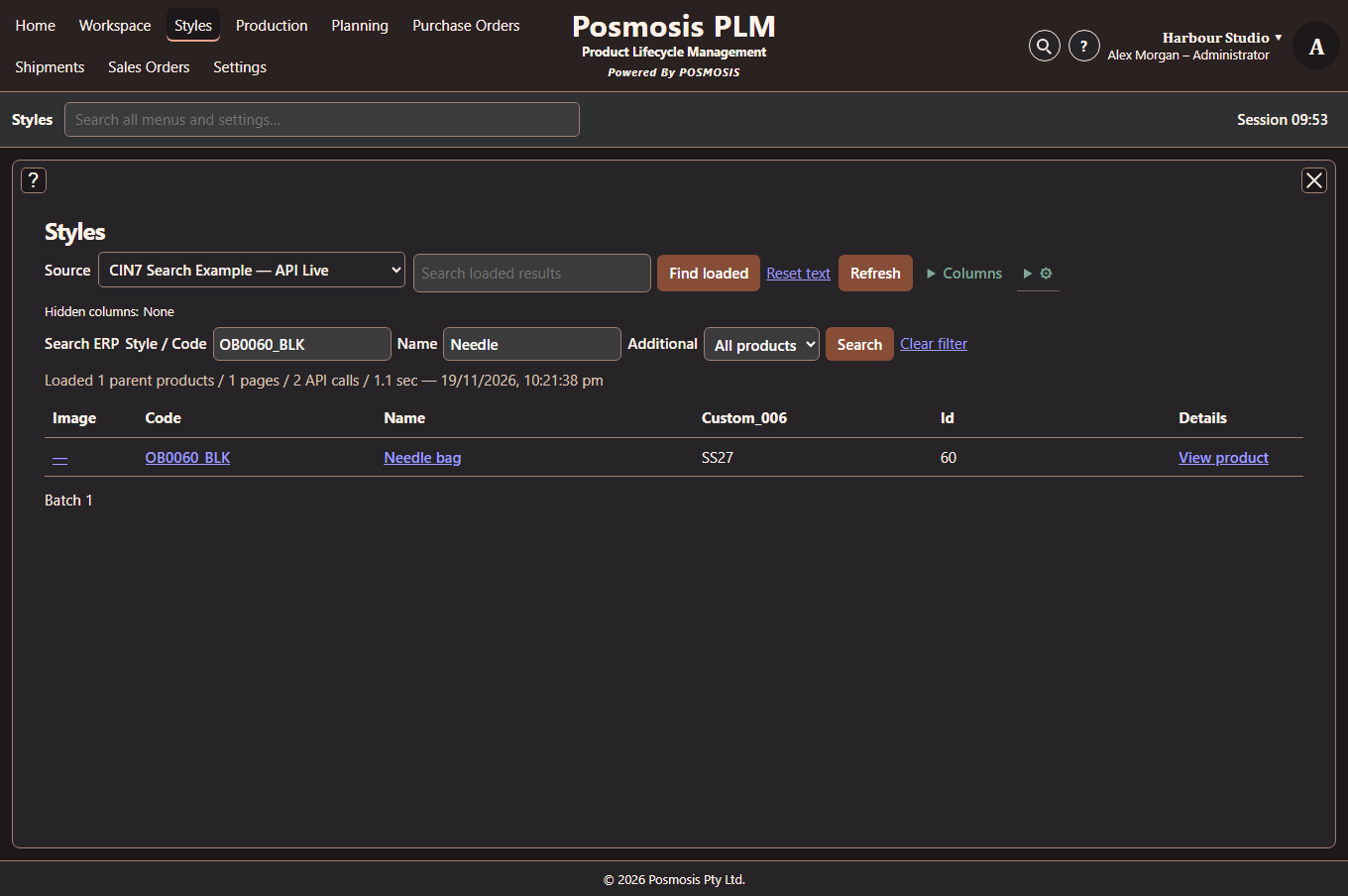
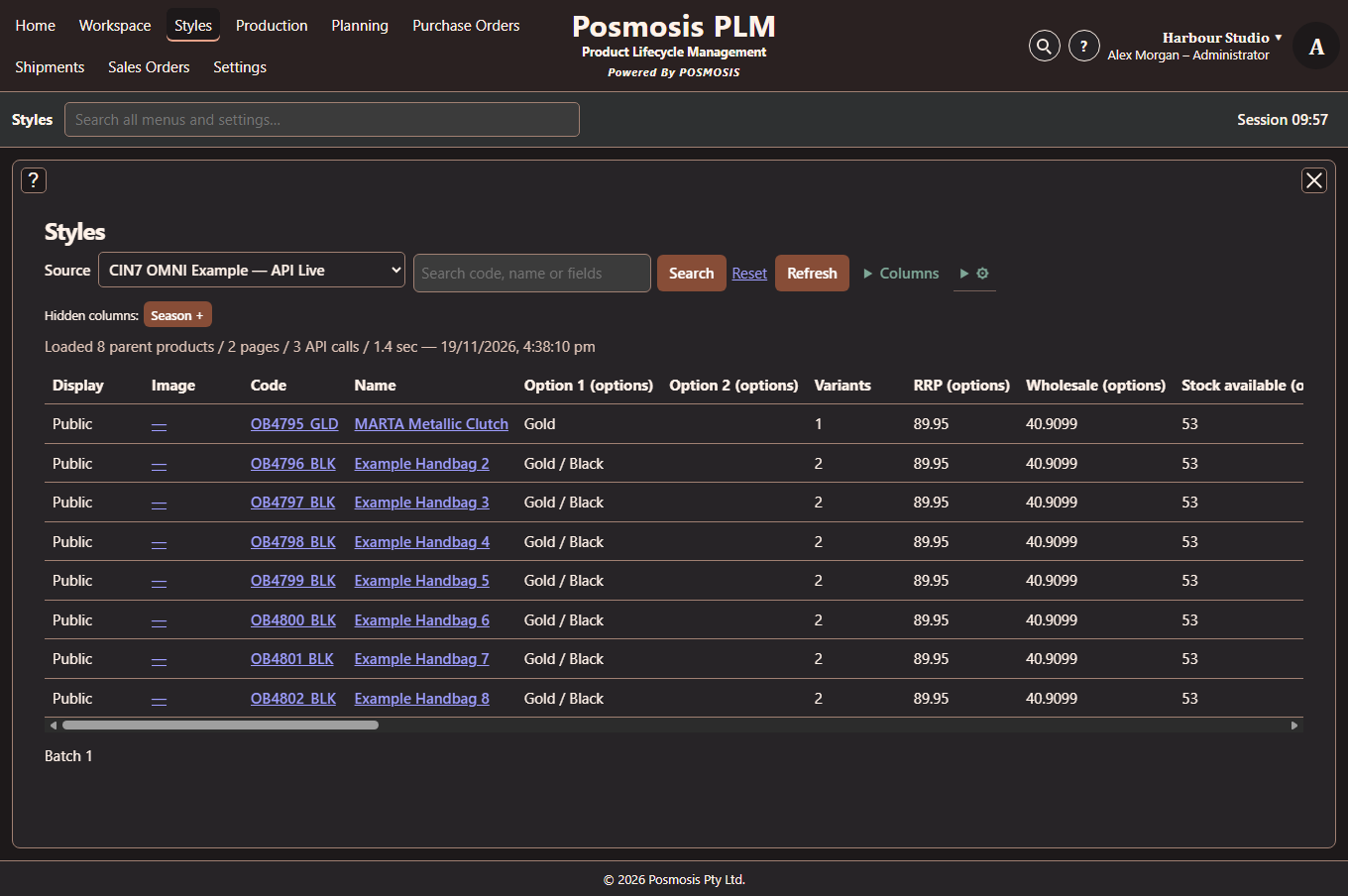
ERP sources: select a named ERP Live or Local source to open its product maintenance list. Cin7 Omni reads Products automatically without Swagger. The compact toolbar has Source, Search, Reset, Refresh, Columns and a settings cog; generic extracts remain in Connections. Style / Code (exact match) and Name (contains) are always visible. Add an optional configured field/comparison/value filter. Non-empty criteria combine with AND before ERP paging in Live mode, or before Local snapshot paging. Search loaded results is a separate quick text filter for the live batch. All available scalar columns are offered (up to 500); arrays remain product/variant detail data.
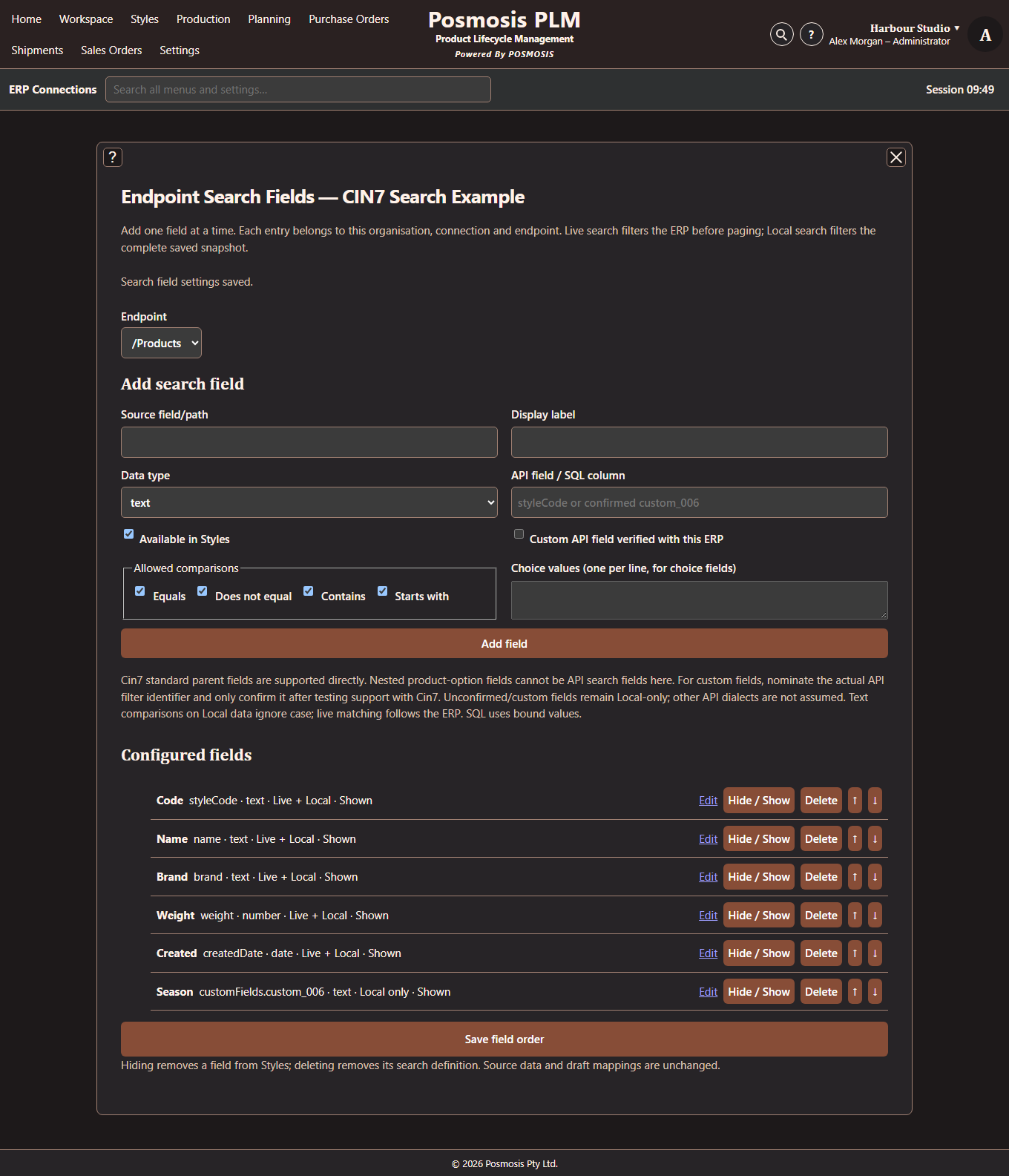
Configure the search dropdown under SuperAdmin → Data Sources & Media → API connection → saved setup → Endpoint Search Fields, selecting Products. Add one field at a time with its original path, display label, data type and allowed comparisons. Cin7 starts with Code and Name. Fields can be edited, hidden, deleted and reordered. Custom API fields require verified filter support; otherwise they are Local-only. Downloads & Carry-over Imports has separate Initial download settings for the server-side filter and download records per API page. Save these before starting; they are independent of Live browsing page settings. Use Stop download or Cancel queued download in Download progress; cancellation keeps the previous complete snapshot. Import source columns are dropdowns. Constant / fixed value applies one value to every imported record rather than copying a source field. Date searches use UTC calendar days. Filter choices survive paging and returning from product details. Click an API error message to open its detailed response in a popup; credentials are redacted, and large responses are capped at 32 KB.
Tick Show images beside the list toolbar to load small thumbnails. The choice is remembered for your user, organisation and connection in this browser. Click a thumbnail for a larger popup. Turning images off hides list thumbnails; details always show all available product and variant images in the top-right gallery beside the product heading. Cin7 HTTP image-host links are upgraded to HTTPS. Missing links and load failures are labelled explicitly. Product code appears above the name. Website Options shows returned nested fields, including small clickable image thumbnails. Sort and Loyalty Points show Not returned by source when absent from the API or saved record; this does not mean they were cleared in the ERP. Their Cin7 screen values are not inferred from unrelated numbered custom fields.
Wide tables have a synchronised horizontal scrollbar pinned above the lower footer, so you can scroll right without reaching the last row. Long list values use an ellipsis instead of overlapping adjacent columns; hover for the cell text. Product detail values default to about 4 cm wide, with compact cards and custom fields arranged across available space. Hover for the full value or focus/tap a detail value to expand it. Descriptions remain multiline. On detail pages with multiple wide tables, point at or focus the table you want to scroll.
Use Columns to tick/untick fields, drag them into order or use the arrow buttons. Hidden fields appear as restore buttons in the Hidden columns strip above the list. Changes apply immediately; choose Save columns to keep them. Preferences belong to you, this organisation and this ERP connection, shared between Live and Local. Show all restores fields; Reset order restores the discovered column order. Detail links remain available when code/name columns are hidden.
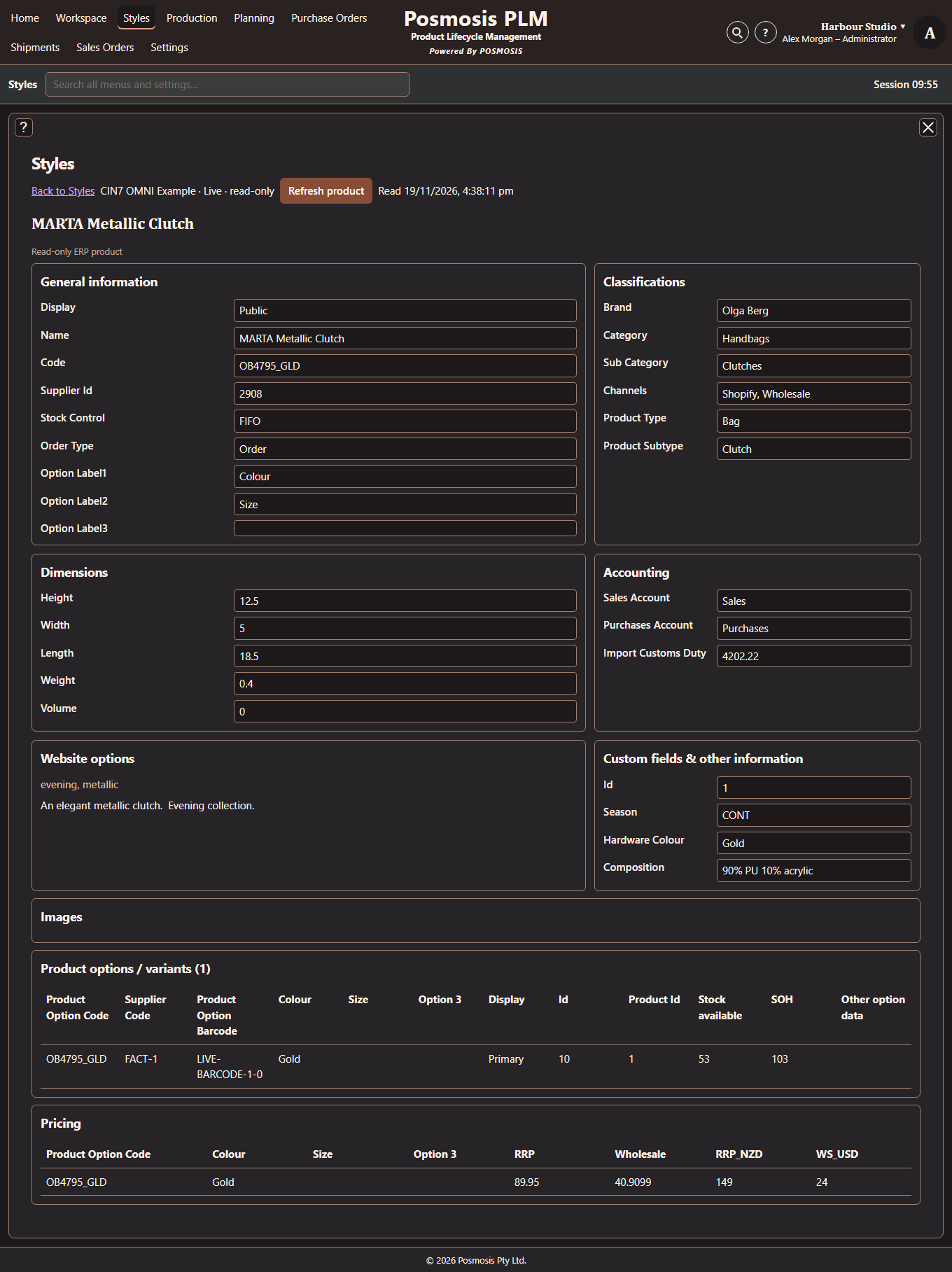
Click the product code or name for a single read-only product page with classifications, dimensions, custom fields, website description, accounting, images, options and pricing. Cin7's product detail response includes its options; no redundant option request is needed. Use Previous and Next beside the title to move through the list in order, including adjoining pages or live batches. Unavailable directions are greyed out; direct links without a list context cannot infer neighbours. Back or the close button restores the original source/search/page. Local details require no ERP connectivity. Variant and pricing tables keep continuous codes, barcodes, URLs and other values on one line; date columns may wrap. Use the horizontal scrollbar for wide tables. Product-option displays are capped at 2,000 rows and 200 columns; additional nested collections have bounded expandable displays. ERP editing, deleting and write-back are not enabled.
Draft products
Open the main Products menu. Its label follows the organisation's Primary terminology, such as Styles or Models.
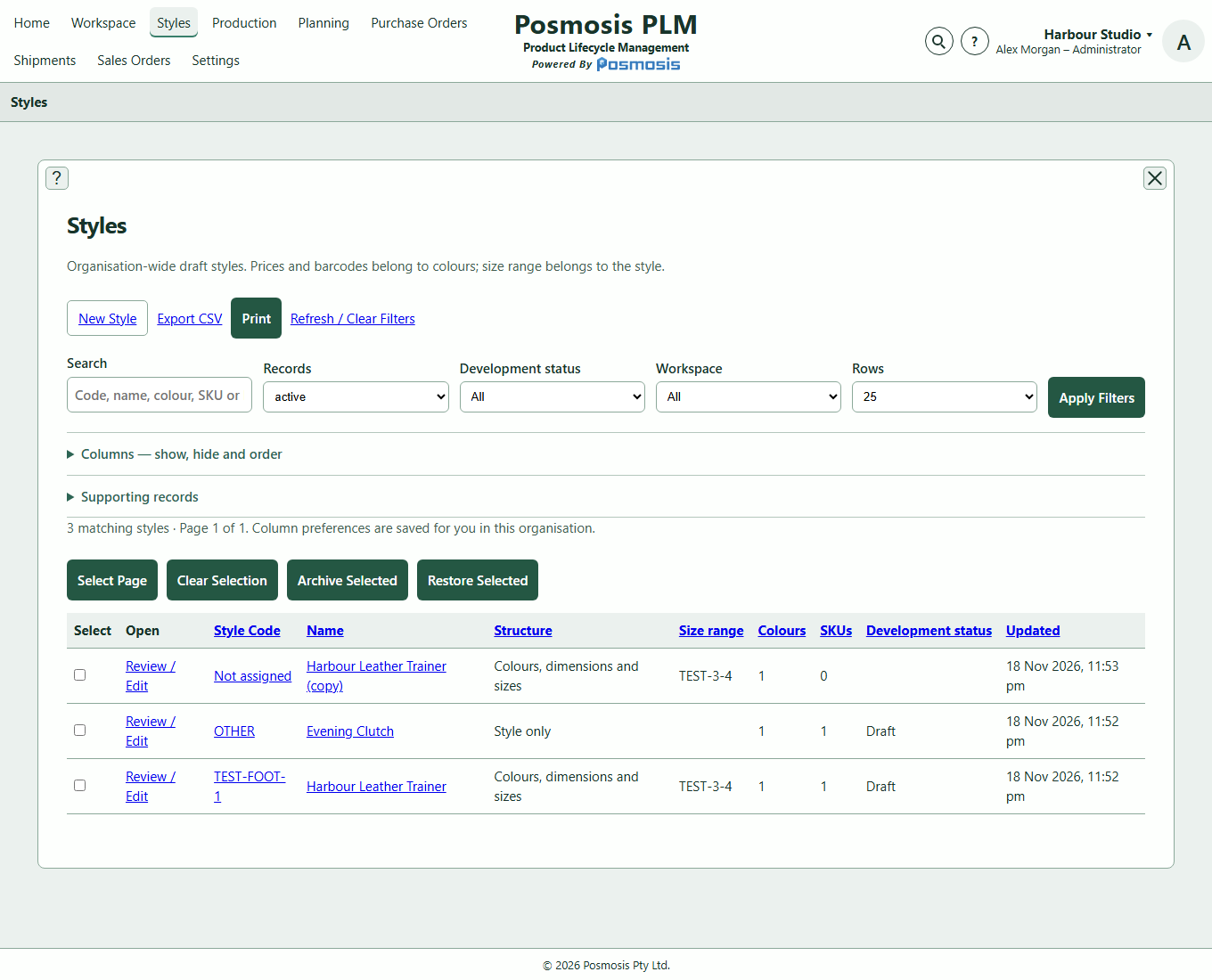
- Search by style code/name, colour code/name, SKU code or barcode. Filter active/archived records, development status or workspace. Select a column heading to sort; choose 25, 50 or 100 rows per page.
- Expand Columns — show, hide and order, tick the columns to display, drag or use arrows to order them, then select Save Columns. Preferences belong to you in the current organisation. At least one column must remain selected.
- Choose New Product, enter a name, select its structure and optional style-level size range, and save. Codes can remain unassigned during capture. The initial colour record is created automatically. Drafts do not create SKU records.
- Click the code, name or Review / Edit to open a record. Edit the style, then its colours. Prices, barcodes, sourcing, seasons, categories, channels, descriptions and measurements belong beneath colour. For footwear choose an ordered dimension/width range and first/last available size and width. Ranges contain explicit members, so B and D can be selected without implying C. Colour-specific footwear classifications, lining, sole, heel height and supplier width are supported; captured source text can remain alongside normalised references.
- Use Save, Save & Close, Save & New or Cancel. Concurrent edits are checked using revision numbers. Unsaved navigation requires confirmation.
Duplicate as Draft copies style and colour definitions, leaving codes, barcodes, prices and ERP links behind. Archive/Restore retains history; bulk actions operate on selected rows on the current page. Only organisation administrators can permanently delete unused records, and references prevent deletion.
Export CSV uses the current filters, sorting and visible columns (up to 5,000 records). Print uses the displayed page. Supporting records provide sample sends and source-document attribution. ERP snapshots, AI extraction and presentation history are read-only preparation; this maintenance page does not start downloads, allocate identifiers, upload media or run AI generation.
Size range is stored on the style. Maintain members, order and Euro/UK/USA-AUS equivalents in Colours & Sizes. Dimension ranges and their members are maintained there too. Individual draft SKU/width breakout records are no longer used; existing legacy rows remain read-only.
On a colour, use SKU Explosion / Export Preparation to choose the destination ERP and freeze size × width combinations into an export batch. Repeating the same preparation reuses that batch. Download it as JSON; changes to a range do not alter an already prepared batch. This does not allocate barcodes or push to an ERP.
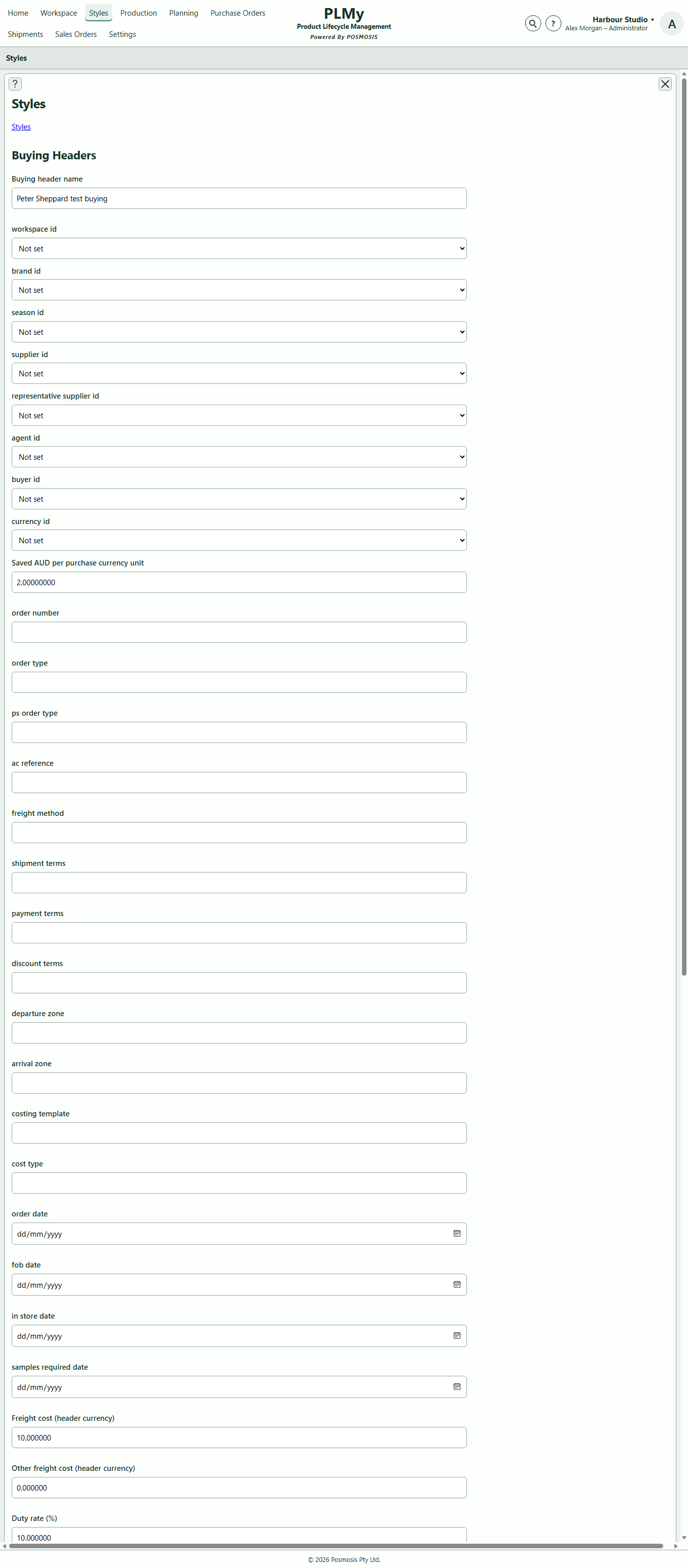
Supporting records → Buying Headers contains brand/season/buyer/supplier, commercial terms, order dates, saved currency conversion, delivery requirements and source-specific fields. Add Buying Colour Lines for quantities, purchase cost, discount and RRP AUD excluding tax. Saved exchange rates are not refreshed automatically. Landed unit cost allocates freight by quantity/value or manually and uses either a duty percentage or fixed AUD duty amount. GP compares this estimate against RRP excluding tax. AC, PS Order Type and Samples requirement preserve source wording. Buying references are under Product Settings → Buying.