Workspaces and Teams
The workbar Workspace selector appears in every area. Planning, Production, Styles, Purchase Orders, Sales Orders, Shipments and Settings select one workspace at a time. The Workspace dashboard additionally offers All my workspaces, showing each accessible workspace in a separate compact card with a wide gap between cards. The overview combines action buttons and compact facts; expand Team members to see its users. Opening a workspace shows the full team list. Each block shows Created Date and Created By at the top right; historical details that were not captured display Not recorded. Open workspace selects that block without changing another browser tab. Returning to the all-workspaces overview does not change the active workspace used in other areas.
Selection travels with this tab through navigation, saves and exports; each tab can use a different workspace. Access and security levels are checked again after switching. Save or discard unsaved edits before switching. Organisation-wide and personal settings retain their scope even when a workspace is selected.
The workbar shows workspace members just left of the session timer, using their global profile picture or initials. Your icon stays closest to the timer; the other members run alphabetically by display name outward to the left. Your icon remains pinned when the member row scrolls. A green ring means the member has a live, unexpired sign-in to this organisation; a red ring means no live sign-in was detected. Hover or focus an avatar to see the bold name, italic workspace role beneath it, and sign-in status. If no role is assigned, Role not set is displayed. In All my workspaces, roles are labelled with their workspace names. Presence refreshes every 15 seconds without reloading the page. Disconnected browsers can take up to 90 seconds to become offline. Grey rings mean status is temporarily unavailable. The All my workspaces overview combines members of accessible workspaces without duplicates. The member row remains available when the optional countdown timer is hidden.
A workspace is an area within an organisation. Its selected setup controls whether type, season, market, division, categories and brand appear and whether they are required. The team is the group of assigned users.
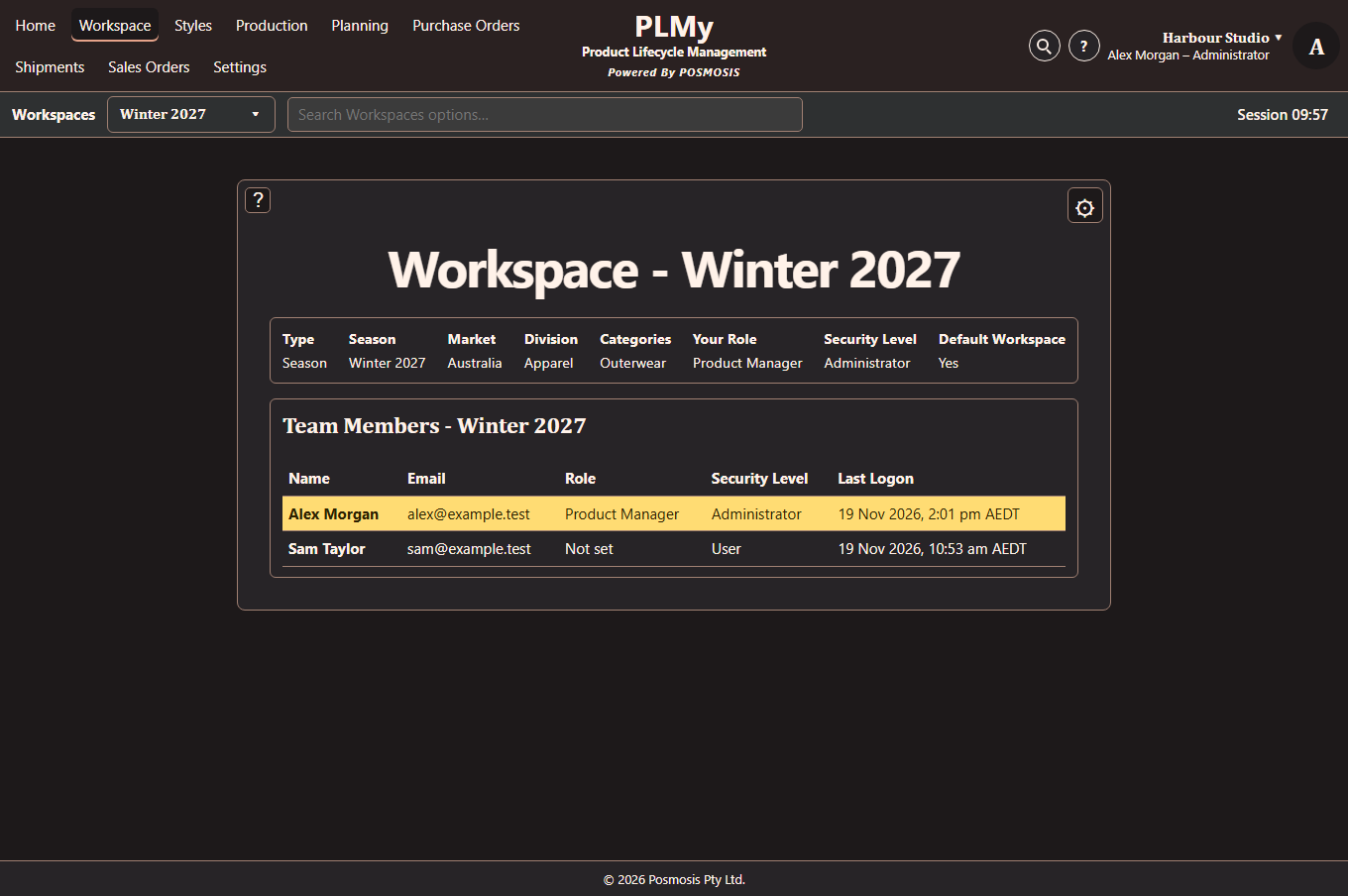
Select Workspace in the title bar to open its dashboard. The dashboard shows the workspace details and its team in separate bordered boxes. Your row is highlighted. Last Logon is the member's latest recorded sign-in to the organisation, shown in your browser's time zone.
Choose a workspace in the Workspaces section workbar and confirm the switch. The dashboard opens for the workspace you choose. If you continued without a workspace, open Workspace and use Select Workspace or Add Workspace when available. Workspace administration is under Settings → Workspace.
Administrators can also use the cog at the top-right of the workspace dashboard panel to open Workspace Settings. The workspace selector appears in every module workbar.