Sign In and Out
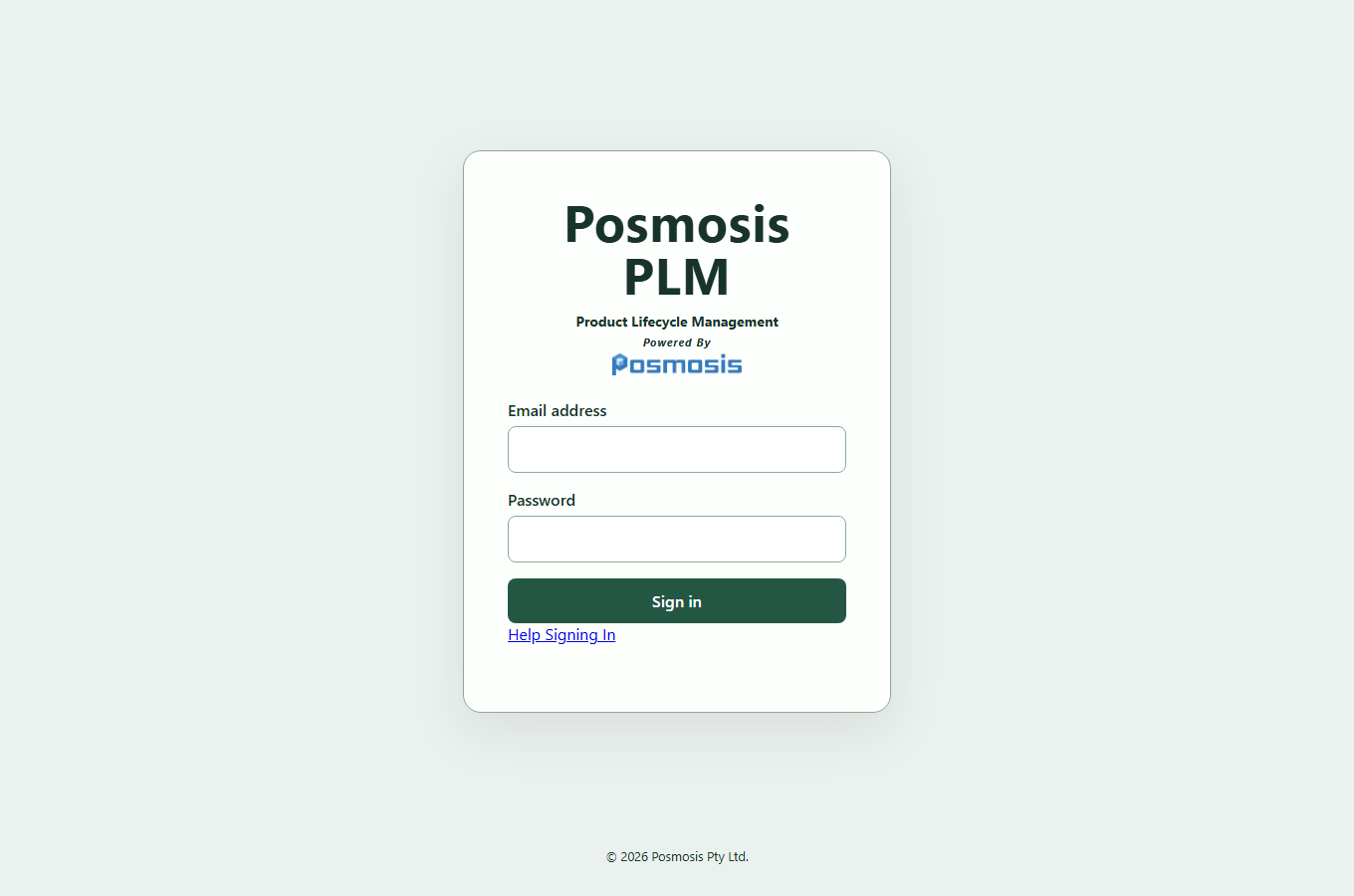
- Open Posmosis PLM and enter the email address and password for your account.
- If prompted, choose an organisation and select Continue.
- If required, enter your authenticator/recovery code or complete authenticator setup. See MFA setup and recovery.
- Choose a workspace, or select Continue Without a Workspace. A saved default can be selected automatically. Administrators can choose Create Workspace if the organisation has none.
Use Log out in the profile menu in the top-right corner when you finish. If you cannot sign in, check your email and password and ask an organisation administrator to check your account and membership status.