Barcode Policies, Pools and Allocation Registers
Open Settings → Products → Codes & Barcodes.
| Policy method | Meaning |
|---|---|
| Manual | A supplied barcode will be recorded by the product workflow. |
| Pool | Reserve an available barcode from an authorised local pool. |
| ERP | Record the barcode returned by the ERP; a fictitious local pool is not required. |
- Create or edit a Barcode Policy. Select GTIN-8, UPC-A, EAN-13, GTIN-14 or internal format, and the allocation stage.
- For a pool policy, create an active Barcode Pool, linking its policy and recording the source/ownership of the numbers.
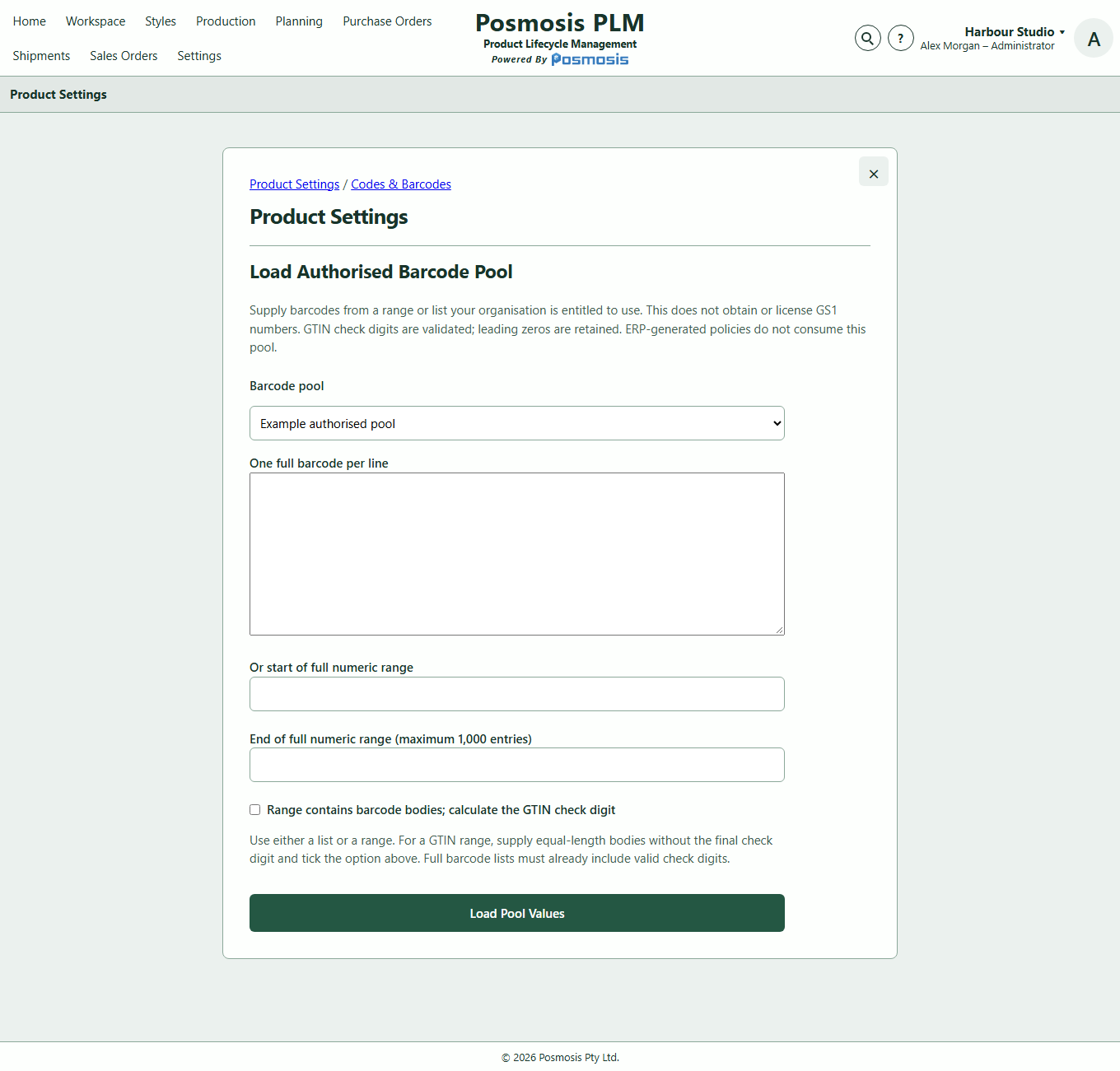
- Choose Load Barcode Pool and select the pool. Supply complete barcodes, one per line, or a numeric range of up to 1,000 values.
- If the range contains GTIN bodies without their final check digit, tick Range contains barcode bodies; calculate the GTIN check digit.
- Load the values. Leading zeros are retained; format/check digits and duplicates are checked. An invalid batch is not partly loaded.
Only load ranges your organisation is entitled to use; this feature does not obtain GS1 numbers. Check Allocation Registers for pool inventory and reservation records. Allocated identities and history cannot be deleted or rewound as ordinary options.
Core product entry is available; live ERP write-back is not yet available. The policies, pool loader and reservation/registration services prepare that workflow; no actual barcode ranges are preloaded.