Session Security
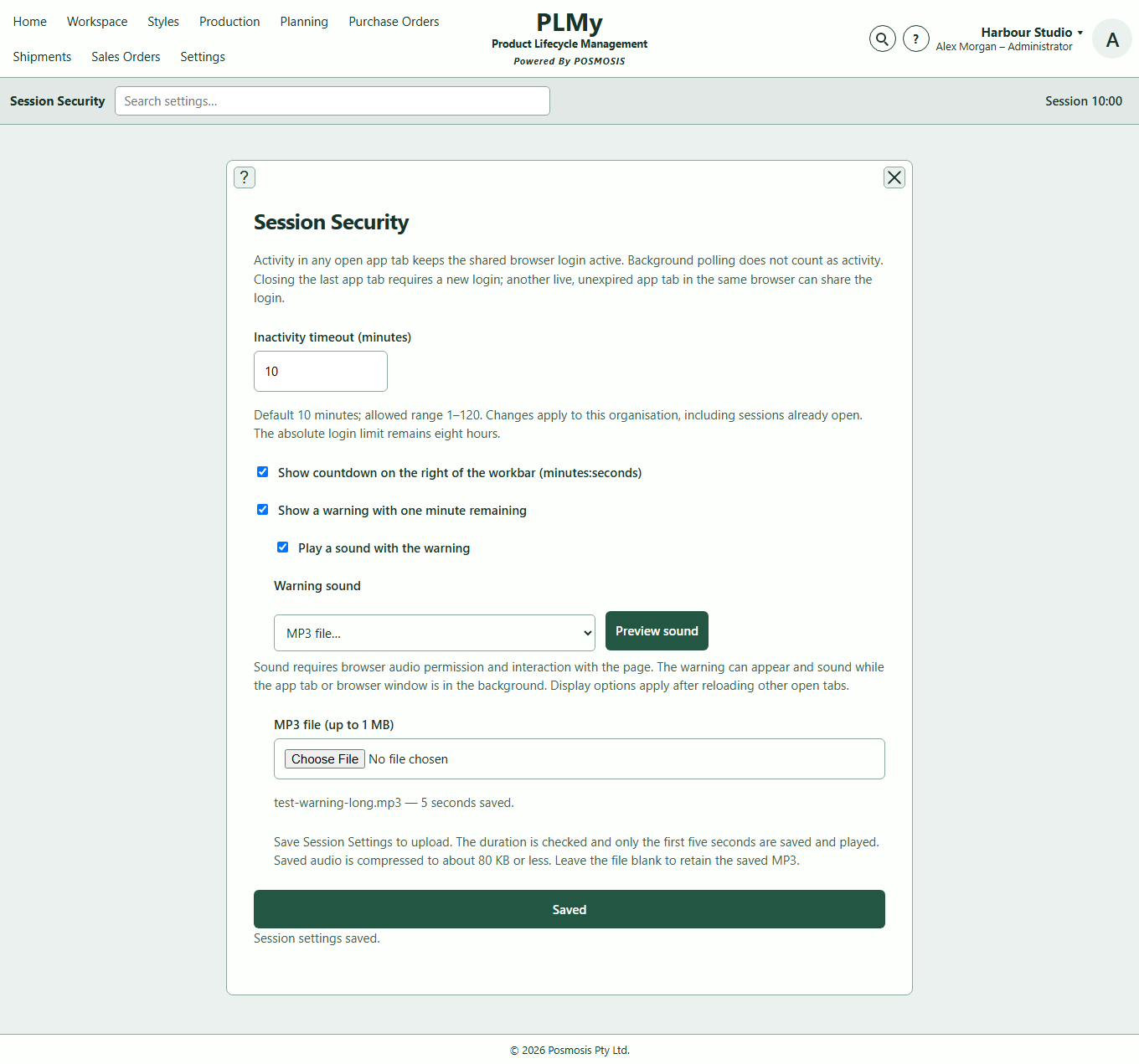
Open Settings → General → Session Security. Organisation administrators can set an inactivity timeout from 1 to 120 minutes; the default is 10 minutes. Save Session Settings applies it to the selected organisation, including existing sessions.
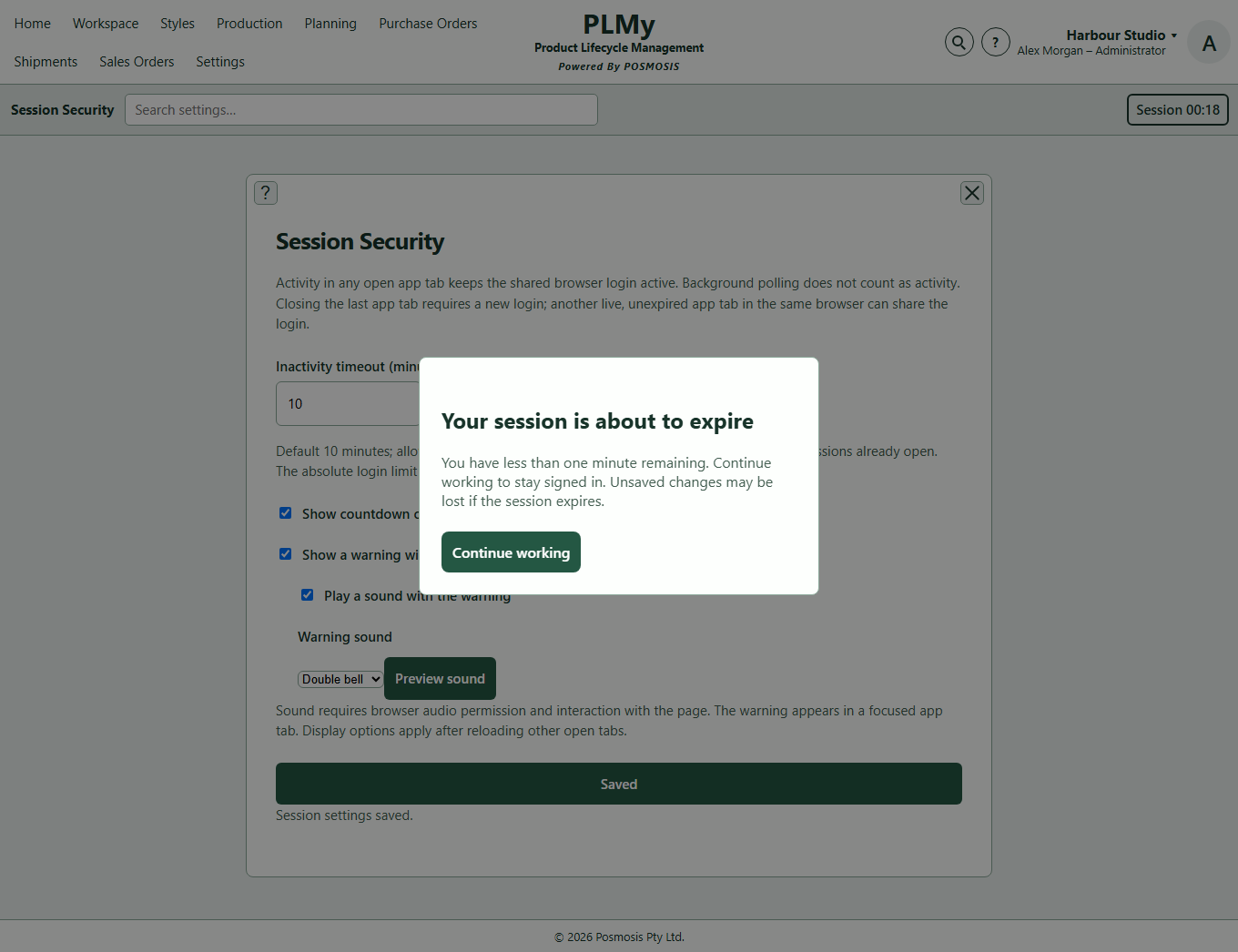
Tick Show countdown to display Session MM:SS on the right of each workbar. Tick Show a warning with one minute remaining for a popup displaying the configured application title and Powered By branding, including when the app tab or browser window is in the background (subject to browser suspension). Beneath it, optionally tick Play a sound, select Soft chime, Double bell, Gentle beep, Pac-Man-style walk (two seconds), Vintage awooga horn or Air horn (five blasts), and use Preview sound. These are synthesised sounds. Choose MP3 file… to upload an MP3 up to 1 MB, then Save Session Settings before previewing. The server checks the duration and retains only the first five seconds, re-encoded to about 80 KB or less. Playback is also capped at five seconds. Leave the upload blank to keep the saved MP3; selecting a built-in sound retains the MP3 for later use. The file is shared only within your organisation. Browsers can block audio until you interact with the page. Save, then reload other open tabs to apply display options. Continue working dismisses the warning and records activity. Merely displaying the countdown or warning does not extend the session.
Keyboard, pointer and touch activity in a focused app tab keeps the shared browser login active. Background downloads and polling do not. After expiry, sign in again; unsaved edits may be lost. The absolute session limit remains eight hours.
Another live, unexpired app tab in the same browser profile can share the login. Closing the last app tab requires credentials when reopening. Reloading or following app links keeps a valid session. Browser profiles, private windows and different browsers do not share it. Closing a laptop or suspending a browser does not pause the timeout.